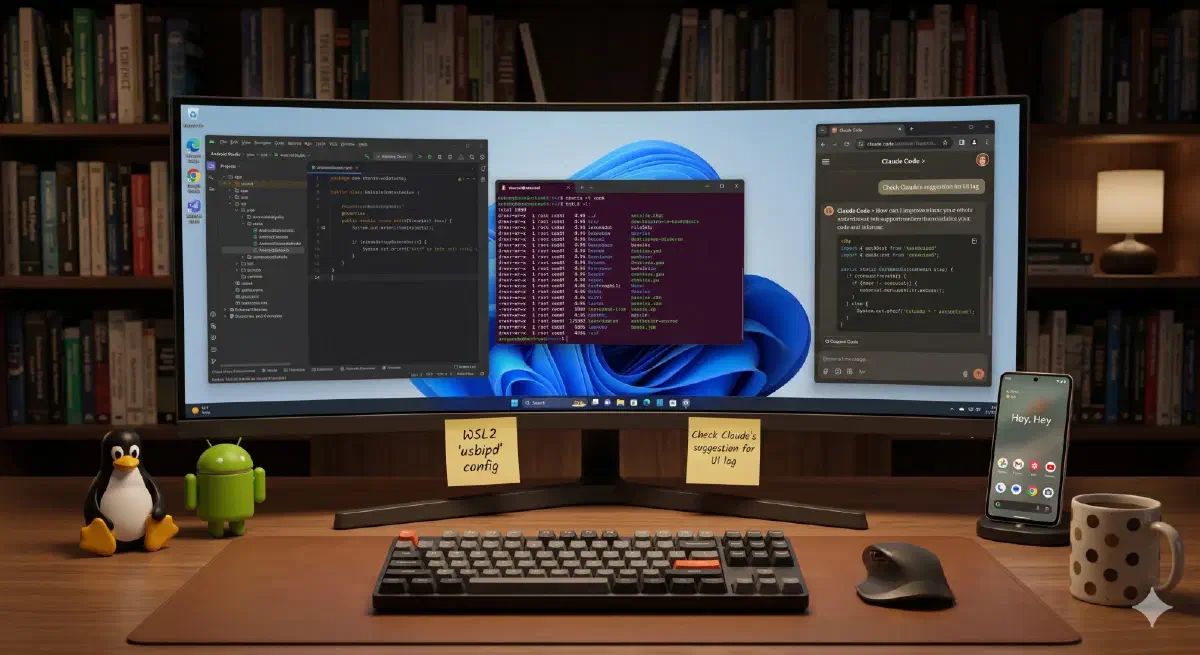
I want to do Android development on a Windows machine without giving up a real Linux toolchain underneath it — fast Gradle builds on a native Linux filesystem, systemd, udev, the lot — and without dual-booting or using a “heavy” VM. WSL2 delivers exactly that: Ubuntu running under Windows, Android Studio drawn through WSLg, a physical phone forwarded over USB, and Claude Code in the terminal. Windows becomes just the host.
This guide stands the whole thing up from scratch. A few honest tradeoffs before you start: there’s no emulator here (it’s slow and finicky under nested virtualization — we use a real device instead), USB has to be forwarded into WSL rather than just working, and a couple of steps need an elevated PowerShell on the Windows side. If you’re comfortable in a terminal, the payoff is a dev box that builds like Linux and lives like Windows.
And, as to be expected in the Cesspool of Knowledge, there’s a twist! About a third of the way in, we install Claude Code — Anthropic’s terminal agent — and hand the rest of the setup to it. So from Phase 4 on, every step is tagged with who drives it:
- 🧑 You drive it — anything on the Windows side (PowerShell), a GUI, or physically plugging in the phone.
- 🤖 Claude Code can drive it — a plain WSL command it runs for you, pausing to ask whenever it hits a 🧑 moment (a
sudopassword, a Windows command, the phone).
Skipping Claude Code is fine — the post is 100% doable by a human; you just play both roles and run the 🤖 steps yourself. Everything before the handoff is yours by necessity (you can’t delegate to an agent you haven’t installed yet), so the tags start at Phase 4.
The phases at a glance — the real goal is Phases 4–5 (Android Studio + a physical ADB device); the rest is convenience:
- Install WSL and Ubuntu — the base system.
- Add Ubuntu to Windows Terminal (optional) — a nicer console than the default.
- Install Claude Code (optional) — the agent you hand Phases 4–6 to.
- Install Android Studio + SDK — the IDE, plus a command-line-provisioned SDK (no GUI wizard).
- Forward a physical device — USB passthrough so
adbsees your phone. - GitHub CLI (optional) — lets Claude Code open PRs and manage issues.
Everything lives inside the Linux filesystem; treat Windows purely as the host.
Update, September 2026
An earlier version of this post ended with a Phase 7 that set up SSH over localhost so the Claude desktop app’s Code tab could reach WSL. The desktop app no longer needs it, so that phase is gone. If you followed it, undo all of it:
- In WSL, run
sudo systemctl disable --now ssh.socket ssh. Name the socket: Ubuntu 24.04 startssshdon demand fromssh.socket, so disablingsshalone leaves port 22 listening.ss -tln | grep ':22'returns nothing once it’s closed. - Remove the
claude-code-wslkey from~/.ssh/authorized_keys. - Run
sudo apt purge openssh-server, then delete/etc/ssh/sshd_config.d/99-claude-code.conf— the purge leaves it behind, because Phase 7 wrote it by hand. - On Windows, delete
claude_code_wsl_ed25519andclaude_code_wsl_ed25519.pubfrom%USERPROFILE%\.ssh\and the copy in your password manager, clear the stale host entries withssh-keygen -R localhostandssh-keygen -R 127.0.0.1, and remove the SSH connection from the desktop app’s Code tab. - Delete
networkingMode = mirroredfrom%USERPROFILE%\.wslconfig, then runwsl --shutdownfrom PowerShell.
Phase 0: Prerequisites
A few things need to be in place before starting.
- Windows 10 or 11 (64-bit) with hardware virtualization available — WSL2 runs on a lightweight utility VM.
- Administrator access — several install steps run from an elevated PowerShell.
- A physical Android device with USB debugging enabled, needed only for the device-passthrough phase.
- A Claude account (optional) — for handing the back half of the setup to Claude Code.
Phase 1: Install WSL and Ubuntu
Install the WSL2 platform, lay down an Ubuntu distro, and turn on systemd. The one-command install below assumes Windows 10 (version 2004 or later) or Windows 11; for older builds, manual feature enablement, or other platform-specific cases, Microsoft’s official WSL installation guide is the canonical reference.
- Install WSL with Ubuntu: From PowerShell as Administrator, install the platform and the Ubuntu distro in one step, then reboot when prompted. On first launch, Ubuntu prompts for a UNIX username and password — these are local to WSL and need not match your Windows credentials.
1wsl --install -d Ubuntu
- Update the distro: Bring the base image current before installing anything else.
1sudo apt update && sudo apt upgrade -y
- Confirm you are on WSL2:
wsl --list --verboseshows Ubuntu atVERSION 2. If it shows1, convert it.
1wsl --list --verbose
2wsl --set-version Ubuntu 2
- Enable systemd: A systemd-managed init makes the rest of the environment behave like a normal Linux box (services,
systemctl, udev). Add the following to/etc/wsl.conf:
1[boot]
2systemd=true
Leave the rest of wsl.conf alone
Plenty of WSL guides also have you set appendWindowsPath = false under [interop] and add an [automount] permissions block. Skip both.
Keep the Windows PATH. With it appended, WSL runs Windows binaries like usbipd.exe and explorer.exe directly, so you — or Claude Code — can check the phone’s attachment with usbipd.exe list without leaving the terminal (Phase 5). The shadowing worry doesn’t apply: Windows binaries keep their .exe, so adb.exe never answers for the Linux adb Phase 4 installs. The price is slower tab-completion of command names, since bash walks the Windows directories too. Worth it.
Skip [automount]. It fixes Linux permissions on files under /mnt/c, and nothing in this guide lives there.
Then restart the WSL backend from PowerShell and reopen Ubuntu. Confirm systemd is actually running as init with systemctl is-system-running (expect running, or degraded if a unit failed — both mean systemd is PID 1) or ps -p 1 -o comm= (expect systemd). Note that systemctl --version is not a valid check — that binary prints a version string even when systemd is not the init system.
1wsl --shutdown
Phase 2: Add Ubuntu to Windows Terminal
Optional — skip if you’re happy launching Ubuntu with wsl or from the default console.
Windows Terminal picks up a new distro on its own. If yours didn’t, add a profile by hand.
- Open Windows Terminal settings with
Ctrl+,, then Add a new profile → New empty profile. - Set the profile fields:
- Name:
Ubuntu - Command line:
wsl.exe -d Ubuntu - Starting directory:
\\wsl.localhost\Ubuntu\home\<your-username>
- Or edit the JSON directly — add an entry to
profiles.list:
1{
2    "name": "Ubuntu",
3    "commandline": "wsl.exe -d Ubuntu",
4    "startingDirectory": "\\\\wsl.localhost\\Ubuntu\\home\\<your-username>"
5}
Phase 3: Install Claude Code
Optional — but this is the handoff point. Install it and you can delegate the WSL-side of everything below; skip it and you simply run the 🤖 steps yourself.
Anthropic’s Claude Code CLI runs natively in the terminal. The native installer bundles its own runtime — no Node, npm, or nvm required.
- Install the CLI: The installer drops the
claudebinary at~/.local/bin/claudeand enables background auto-updates.
1curl -fsSL https://claude.ai/install.sh | bash
If the installer reports that ~/.local/bin is not on your PATH:
1echo 'export PATH="$HOME/.local/bin:$PATH"' >> ~/.bashrc
2source ~/.bashrc
- Authenticate and verify: Run
claudefrom inside a project directory — on first launch it opens a browser to sign in with your Claude account. Then confirm the install is healthy.
1claude --version
2claude doctor
Hand the rest off to Claude Code
From here, steps are tagged 🧑 (you drive) or 🤖 (Claude Code can drive). To hand off the 🤖 work, open claude in a scratch directory and paste:
1Read https://blog.banasiak.com/2026/06/wsl2-android-development/ and set up this
2WSL machine by running every 🤖 step. Stop and ask me whenever a 🧑 step is
3needed — a Windows PowerShell command, a GUI action, or plugging in the phone.
It runs the WSL-side work and pauses for your Windows/physical bits (and the occasional sudo password). One thing it must never do itself is restart WSL: wsl --shutdown ends the very session Claude Code is running in, so any step that needs a restart is yours. Prefer to do it by hand? Every 🤖 step is an ordinary WSL command — just run them yourself.
Phase 4: Install Android Studio + SDK
This is the core of the whole exercise. Android Studio runs inside WSL via WSLg (the GUI layer WSL2 provides), and we provision the SDK entirely from the terminal — so Android Studio’s first-run setup wizard has nothing to do and never gets in the way. The emulator stays off; physical devices are forwarded in Phase 5.
- 🤖 Install the X client libraries and
unzip: Studio needs the X client libs to draw through WSLg;unzipunpacks the SDK command-line tools. Most are already on a fresh Ubuntu; install the full set anyway.
1sudo apt update && sudo apt install -y unzip \
2    libxrender1 libxtst6 libxi6 libfreetype6 fontconfig libgl1 libnss3 \
3    libxcomposite1 libxcursor1 libxdamage1 libxfixes3 libxrandr2 libpulse0
- 🤖 Create an owned
/opt/androidtree: The IDE and SDK live side by side here, and because you own it, nothing below needssudoand Android Studio can self-update without root. The setgid bit makes everything created inside inherit theusersgroup.
1sudo mkdir -p /opt/android
2sudo chown "$USER:users" /opt/android
3sudo chmod 2775 /opt/android   # setgid: studio/ and sdk/ inherit the users group
- 🤖 Download and extract Android Studio: Grab the Linux
.tar.gzURL from developer.android.com/studio (Claude Code can read the current URL off the page; by hand, copy it from the download button). Then unpack it into the owned tree — nosudoneeded.
1# Example shows the current build — check the page for the latest:
2curl -fL -o /tmp/android-studio.tar.gz \
3  "https://edgedl.me.gvt1.com/android/studio/ide-zips/2026.1.1.9/android-studio-quail1-patch1-linux.tar.gz"
4mkdir -p /opt/android/studio
5tar -xzf /tmp/android-studio.tar.gz --strip-components=1 -C /opt/android/studio
The --strip-components=1 drops the tarball’s leading android-studio/ directory so the contents land directly in /opt/android/studio (launcher at /opt/android/studio/bin/studio).
- 🤖 Set the environment and put everything on PATH: Append one block to
~/.bashrc.JAVA_HOMEpoints at Android Studio’s bundled JBR — which is also the JDK we’ll runsdkmanagerunder, so there’s no separate JDK to install.ANDROID_HOMEis the SDK root (which the next step populates).
1cat >> ~/.bashrc <<'EOF'
2
3# --- Android development (WSL2) ---
4export JAVA_HOME="/opt/android/studio/jbr"
5export ANDROID_HOME="/opt/android/sdk"
6export PATH="$PATH:$JAVA_HOME/bin:/opt/android/studio/bin:$ANDROID_HOME/cmdline-tools/latest/bin:$ANDROID_HOME/platform-tools"
7EOF
8source ~/.bashrc
That single line wires up java (Studio’s bundled JBR), studio, sdkmanager, avdmanager, adb, and fastboot for every new shell. The source refreshes the current shell only — any terminals you already had open won’t see the new PATH until you restart them (or source ~/.bashrc there too). If Claude Code made this edit, your own terminal is one of those stale ones: restart it before you run studio or adb yourself, or you’ll get “command not found.”
If you use Claude Code, give its shells the two variables as well. Its shells are non-interactive, so they skip the exports in ~/.bashrc; set them in the env block of ~/.claude/settings.json instead, merged into whatever that file already holds:
1{
2  "env": {
3    "JAVA_HOME": "/opt/android/studio/jbr",
4    "ANDROID_HOME": "/opt/android/sdk"
5  }
6}
- 🤖 Provision the SDK from the terminal: This is what lets us skip the GUI wizard. Download the “Command line tools only” package (same download page), arrange it at the
cmdline-tools/latestpathsdkmanagerexpects, accept the licenses non-interactively, then install platform-tools, a platform, and build-tools.
 1# ~/.bashrc only loads in interactive shells, so re-export here — this block
 2# must work even when an agent runs it in a fresh, non-interactive shell.
 3export JAVA_HOME="/opt/android/studio/jbr"
 4export ANDROID_HOME="/opt/android/sdk"
 5SDKMGR="$ANDROID_HOME/cmdline-tools/latest/bin/sdkmanager"
 6
 7curl -fL -o /tmp/cmdline-tools.zip \
 8  "https://dl.google.com/android/repository/commandlinetools-linux-14742923_latest.zip"
 9mkdir -p "$ANDROID_HOME/cmdline-tools"
10unzip -q /tmp/cmdline-tools.zip -d /tmp/clt
11mv /tmp/clt/cmdline-tools "$ANDROID_HOME/cmdline-tools/latest"
12chgrp -R users "$ANDROID_HOME/cmdline-tools"   # mv preserves the old group; restore users
13
14yes | "$SDKMGR" --licenses >/dev/null
15"$SDKMGR" "platform-tools" "platforms;android-36" "build-tools;36.0.0"
16
17"$ANDROID_HOME/platform-tools/adb" --version   # confirm the SDK works
Bump android-36 / build-tools;36.0.0 to the current API level. The chgrp is there because mv preserves the source group rather than inheriting the setgid users group — without it, cmdline-tools would be the odd directory out. The exports repeat step 4 on purpose: ~/.bashrc is skipped in the non-interactive shells an agent runs in, so this step sets the vars itself and calls sdkmanager/adb by full path rather than trusting PATH.
- 🤖 Set sane Gradle defaults: In
~/.gradle/gradle.properties, give the daemon enough heap and turn on the usual speedups. Adjust the heap to your machine’s memory.
1mkdir -p ~/.gradle
2cat > ~/.gradle/gradle.properties <<'EOF'
3org.gradle.jvmargs=-Xmx8g -Dfile.encoding=UTF-8
4org.gradle.daemon=true
5org.gradle.parallel=true
6org.gradle.caching=true
7org.gradle.configuration-cache=true
8EOF
- 🤖 Fix the window-shadow rendering artifact: Out of the box the JetBrains Runtime draws through XWayland under WSLg, which triggers a known compositor bug: the window shadow is left behind as a stale rectangle on resize and monitor-to-monitor moves. Two options clear it — switch the runtime to its native Wayland toolkit, and disable the JBR shadow that is the actual artifact. The GUI route is Help → Edit Custom VM Options; the terminal route writes the same file the GUI would, at a version-specific path Studio records in
product-info.json:
1CFG=~/.config/Google/$(grep -o '"dataDirectoryName": *"[^"]*"' \
2  /opt/android/studio/product-info.json | cut -d'"' -f4)
3mkdir -p "$CFG"
4cat > "$CFG/studio64.vmoptions" <<'EOF'
5-Dawt.toolkit.name=WLToolkit
6-Dsun.awt.wl.Shadow=false
7EOF
Studio copies this file into each new version’s config directory when it updates itself, so this is a one-time fix. To tune further, append any of these to the same file (one per line) — bigger heap for large projects, a HiDPI scale, or a fix for a separate JCEF embedded-browser GPU artifact:
1-Xms2g
2-Xmx8g
3-Dsun.java2d.uiScale=1.5
4-Dide.browser.jcef.gpu.disable=true
- 🧑 Launch Android Studio: Everything it needs already exists, so this is mostly a formality.
1studio
It detects the SDK at ANDROID_HOME and has nothing to download — no setup-wizard components, no AVD. If a brief wizard appears at all it’s a no-network confirm-and-finish. From inside a project, studio . opens that project (the trailing . is the operative part; bare studio just reopens the welcome screen).
Keep projects on the Linux filesystem
Use a path under ~/workspace/ — never on /mnt/c/…, and never reached from Windows via \\wsl.localhost\…. Cross-filesystem Gradle is dramatically slower.
Phase 5: Forward a Physical Device with usbipd-win
WSL2 has no native USB stack. The supported path is usbipd-win, which forwards a USB device from Windows into WSL so it appears as a real Linux device — ADB then talks to the phone directly, with no Windows-side ADB server in between.
- 🧑 Install usbipd-win on Windows: In PowerShell as Administrator.
1winget install --interactive --exact dorssel.usbipd-win
Open a fresh PowerShell afterward, then confirm with usbipd --version and usbipd list.
- 🤖 Install the ADB udev rules in WSL: This is what lets a non-root user claim the device once it is attached.
usbutilscomes along too — it provideslsusb, which step 5 uses to confirm the passthrough reached the kernel.
1sudo apt install -y android-sdk-platform-tools-common usbutils
2sudo udevadm control --reload-rules
3sudo udevadm trigger
Confirm plugdev membership with groups — WSL’s Ubuntu image puts your user in it. If it’s missing, add yourself, then close and reopen WSL (🧑) so the new group takes effect:
1sudo usermod -aG plugdev $USER
- 🧑 Bind the device on Windows (one-time): Plug in the phone and enable Developer Options → USB Debugging. usbipd can only forward a device Windows recognizes, so the phone’s ADB interface needs a Windows driver. If
bindorattachfails, Windows doesn’t have one: install it first (Google USB Driver for Pixel/Nexus, OEM driver otherwise), then find the bus ID and bind. The bind persists across reboots.
1usbipd list
2usbipd bind --busid <BUSID>
- 🧑 Attach to WSL (per session): Forward the bound device into WSL.
1usbipd attach --wsl --busid <BUSID>
- 🤖 Confirm ADB sees it: In WSL, restart the ADB server so it picks up the freshly-attached device.
1export PATH="$PATH:/opt/android/sdk/platform-tools"   # agent shells skip ~/.bashrc, so set PATH here
2lsusb
3adb kill-server
4adb start-server
5adb devices
Accept the “Allow USB debugging?” prompt on the phone (🧑 — WSL is a new ADB host from the phone’s perspective, so it re-prompts). adb devices now lists the phone as device.
- 🧑 Auto-attach (optional): To skip the per-session attach, run a persistent PowerShell window that reattaches whenever the device reappears.
1usbipd attach --wsl --busid <BUSID> --auto-attach
Notes:
usbipdis a Windows command, andbindneeds an elevated PowerShell. With the WindowsPATHappended (WSL’s default),usbipd.exe listalso works from the WSL shell, which lets Claude Code see whether the phone is attached. (The Linuxlinux-tools-commonpackage ships an unrelatedusbip; do not install it by mistake.)adb devicesreporting “no permissions (missing udev rules?)” means the udev rules did not load — re-run the commands in step 2 and re-attach.- Attachments do not survive a WSL restart; re-run the
usbipd attachcommand afterwsl --shutdown.
Phase 6: GitHub CLI for Pull Requests
Optional — it’s what lets Claude Code (or you) open pull requests and manage issues from the CLI.
With the GitHub CLI authenticated, Claude Code can open pull requests, check CI status, and manage issues on your behalf — it detects gh on the PATH automatically.
- 🤖 Install from the official apt repository: Run this block in WSL to add GitHub’s repository and install
gh.
1(type -p wget >/dev/null || (sudo apt update && sudo apt install wget -y)) \
2  && sudo mkdir -p -m 755 /etc/apt/keyrings \
3  && out=$(mktemp) && wget -nv -O$out https://cli.github.com/packages/githubcli-archive-keyring.gpg \
4  && cat $out | sudo tee /etc/apt/keyrings/githubcli-archive-keyring.gpg > /dev/null \
5  && sudo chmod go+r /etc/apt/keyrings/githubcli-archive-keyring.gpg \
6  && echo "deb [arch=$(dpkg --print-architecture) signed-by=/etc/apt/keyrings/githubcli-archive-keyring.gpg] https://cli.github.com/packages stable main" | sudo tee /etc/apt/sources.list.d/github-cli.list > /dev/null \
7  && sudo apt update \
8  && sudo apt install gh -y
Don't install the Snap build of gh
The Snap gh runs in a sandbox that blocks access to your SSH keys and .gitconfig — use the apt repository above instead.
- 🧑 Authenticate with GitHub: Run
gh auth loginand choose GitHub.com → SSH → No (do not generate a new key) → Login with a web browser. Enter the one-time code in the browser, then verify.
1gh auth login
2gh auth status
Wrapping up
That’s the whole stack: Ubuntu under WSL2 with systemd, Android Studio drawn natively through WSLg, the SDK provisioned headlessly so there’s no wizard to fight, your physical phone forwarded over USB so adb and the IDE talk to it directly, and — if you took the optional path — Claude Code driving the WSL-side of it all while you covered the Windows and physical bits.
From here, drop a project under ~/workspace/, run studio ., and build. The only ceremony you’ll repeat after a reboot is a single usbipd attach to re-forward the phone (Phase 5) — everything else persists. And if something goes quiet, the per-phase verification commands are the place to start: each one tells you which half of the bridge, Windows or WSL, has dropped the connection.